Time Machine is a simple plugin that grab N published articles from database (posts and/or pages) published on current day and/or offset of time in past years, and list them in widget or block.
User can set widget title, number of displayed articles and message shown when there is no public articles in past.
Features
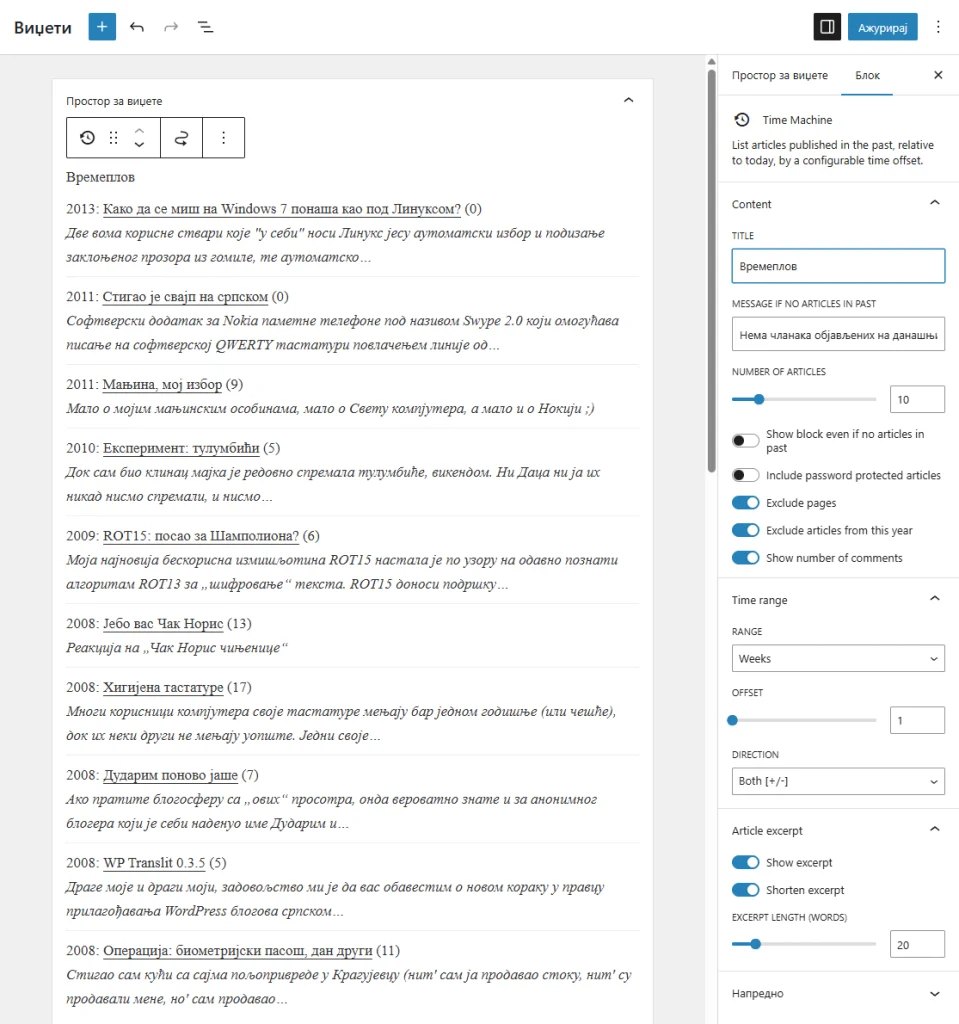
- Shortcode, legacy widget, block-based widget and Gutenberg block, all with the same options
- Set the number of articles to list
- Set a custom message for days with no articles in the past, or hide the whole list when there is nothing to show
- Include or exclude pages, and optionally exclude articles from the current year
- Set offset and offset direction (before, after or both) with a time range in days, weeks or months
- Optionally show an excerpt with a custom length; it is generated from post content when there is no manual excerpt
- Optionally show the number of comments
- Lists only published articles (drafts are never included)
- Password protected articles are excluded unless you explicitly enable them; when included, the manual excerpt is used if there is one, otherwise no excerpt is generated from the content until the visitor unlocks the article (same as WordPress core)
- Works with full page cache plugins: the list is refreshed after page load through a small REST endpoint (can be disabled with a constant in wp-config.php)
- Site Health check warns you if a REST API restriction blocks that refresh, and tells you how to fix it
- Cached queries that are cleared automatically whenever a post or page is saved
- Clean, semantic HTML5 markup that validates without errors, styled by your theme’s CSS
Download
You can download the plugin below or from the official WordPress.org page for Time Machine while the development version can be found in the GitHub repository urosevic/time-machine
Time Machine v26.9.0
46.7 KB
- Test: WordPress 7.1
- Refactor: Full plugin refactored
- Add: Support for Block Editor (FSE Widget and Gutenberg Block)
- Add: Excerpt is now generated from post content when no manual excerpt is set, same fallback WordPress core uses for
the_excerpt() - Add: Password protected posts with no manual excerpt show a notice instead of a generated excerpt, until the current visitor unlocks that post
- Add: Front-end auto-refresh of the post list via a REST endpoint, so pages served from a full page cache plugin still show current content
- Add: Daily check of whether a site wide REST API restriction blocks the front-end refresh route, reported in a dismissible admin notice and in a Site Health test, with the snippet needed to allow that one read only route
- Add:
TIME_MACHINE_DISABLE_REFRESHconstant to switch the front-end refresh off site wide fromwp-config.php - Change: Remove
hoursoffset - Change: Rename rangetype -> direction and rangenum -> offset
- Change: Remove Excerpt before/after HTML tags and wrap excerpt into span with class excerpt
- Change: Offset query results are now sorted newest year first
- Improve: Offset query now compares whole days instead of the exact time, and results are cached (object cache, or transient when no persistent object cache is active)
- Improve: Offset query loop now starts from the oldest published post’s year (cached for a month) instead of a hardcoded 2002
- Improve: Cache is invalidated automatically whenever a post or page is saved, instead of only relying on the daily/monthly expiration
- Improve: Front-end script is enqueued minified, and served as readable source only while
SCRIPT_DEBUGis on
Installation
Getting started with Time Machine takes less than 2 minutes. Choose your preferred installation method below.
Quick start (Recommended)
- In your WordPress Dashboard, go to Plugins → Add New
- Search for time machine
- Click Install Now on the Time Machine plugin
- Click Activate
- Go to Appearance → Widgets to add legacy or Gutenberg widget, or to Appearance → Editor → Templates to add FSE block
That’s it! You’re ready to configure what your Time Machine is going to list.
Alternative installation methods
Manual upload via WordPress Dashboard
- Download the plugin from WordPress.org
- In WordPress Dashboard, go to Plugins → Add New
- Click Upload Plugin at the top
- Click Choose File and select the
time-machine.zipfile - Click Install Now
- After installation completes, click Activate Plugin
- Navigate to Appearance → Widgets to add legacy or Gutenberg widget, or to Appearance → Editor → Templates to add FSE block
FTP/SFTP installation
For users with direct server access:
- Download
time-machine.zipfrom WordPress.org - Extract the archive on your local computer
- Connect to your server via FTP/SFTP
- Upload the entire
time-machinefolder to/wp-content/plugins/ - In WordPress Dashboard, go to Plugins → Installed Plugins
- Find Time Machine and click Activate
- Navigate to Appearance → Widgets to add legacy or Gutenberg widget, or to Appearance → Editor → Templates to add FSE block
WP-CLI installation
For developers using command line:
wp plugin install time-machine --activateHow To Use?
After activation on Plugins page, add widget via Appearance → Widgets or block via Appearance → Editor → Templates, proceed with widget/block configuration.
What is “Time range”?
By default, Time Machine will list only posts published on same month day in past years. But, you can set offset and force displaying posts published, for example, on same day and three days before (if today is October 10th, you’ll get posts published in range from October 7th to October 10th in previous years).
Frequently Asked Questions
Why name Time Machine?
I like effect that produce Time Machine – traveling trough time. This plugin does exactly that, but with fixed month and day constant.
How I can help?
Review and rate plugin, submit suggestions, contribute on WordPress forum.
Does Time Machine work with full page cache plugins (WP Rocket, WP Fastest Cache, W3 Total Cache…)?
Yes. Time Machine’s list is refetched from a small REST endpoint right after the page finishes loading, so the visible content stays current even when the whole page has been cached for longer than a day. The cached markup already on the page stays visible until (and unless) that request succeeds, so nothing is ever blank while it refreshes, and the page cache itself is never touched or purged.
If you prefer to disable this and rely only on the page cache’s own expiry, add to wp-config.php.
define( 'TIME_MACHINE_DISABLE_REFRESH', true );
How do I turn the front end auto-refresh off?
Add this to wp-config.php:
define( 'TIME_MACHINE_DISABLE_REFRESH', true );No data-time-machine-* attributes are printed after that, the refresh script is never enqueued, and no REST request is ever made. Lists render once, on the server. On a page held in a full page cache for longer than a day, the list can then be a day or more behind.
The browser console shows a 401 on /wp-json/time-machine/v1/list. What is wrong?
A security plugin or snippet on your site closes the whole REST API to signed out visitors, through the rest_authentication_errors filter. That filter runs before any route can state that it is public, so Time Machine cannot exempt its own route from it, however read only that route is.
Nothing is broken for your visitors. The list is rendered on the server and stays on screen; only the refresh described above is skipped, and the failed request is logged in the console. Time Machine checks this once a day and tells you in Tools → Site Health, which spells out the two options below.
Option 1: switch the refresh off.
Add this to wp-config.php:
define( 'TIME_MACHINE_DISABLE_REFRESH', true );
No request is made after that, so the console stays clean. Lists render once, on the server, exactly as they did before this feature existed. On a page held in a full page cache for longer than a day, the list can then be a day or more behind.
Option 2: let this one route through.
It is read only and returns the same published titles, excerpts and links the page already shows to the same visitor, so letting it through gives nothing away. Add this to a must-use plugin or to your theme’s functions.php:
add_filter(
	'rest_authentication_errors',
	function ( $result ) {

		if ( ! is_wp_error( $result ) ) {
			return $result;
		}

		$route = isset( $GLOBALS['wp']->query_vars['rest_route'] )
			? ltrim( $GLOBALS['wp']->query_vars['rest_route'], '/' )
			: '';

		if ( 0 === strpos( $route, 'time-machine/v1/' ) ) {
			return null;
		}

		return $result;
	},
	99
);
It runs after the restriction and before the core cookie check, and clears the error for the time-machine/v1 namespace only. Every other route keeps the restriction exactly as it is.
Screenshots
Credits
Note about Google News
User Obragblog noticed an issue with older versions of the Time Machine and reported on community support forum.
Just a note of caution for folks working to rank in Google news… this plugin does exactly what the author says it will, I thought it was a great feature but shortly after implementing it Google News stopped picking up any posts.
Investigating this through Google webmaster tools showed me that links in the Time Machine sidebar widget were causing Google to reindex old posts and killed my ranking as articles had “Date too old“. A few days after I disabled the plugin google news is back, but it really killed my traffic for about a week.
As a solution, we have implemented rel="nofollow" to article links.
Need help?
If something isn’t working, please open a support ticket with details about your issue. We’re committed to helping you get it up and running.
Please check our FAQ section before opening a ticket to see if your question has already been answered.
If Time Machine satisfy your requirements, we’d appreciate a review!